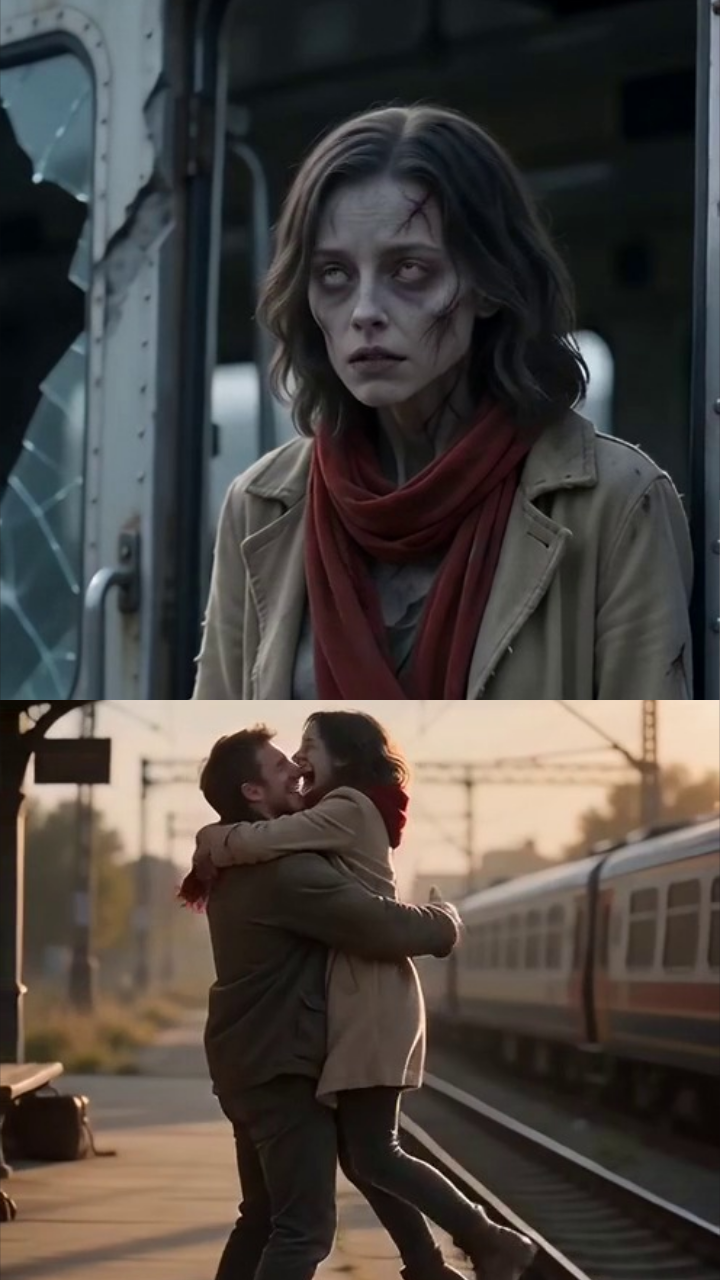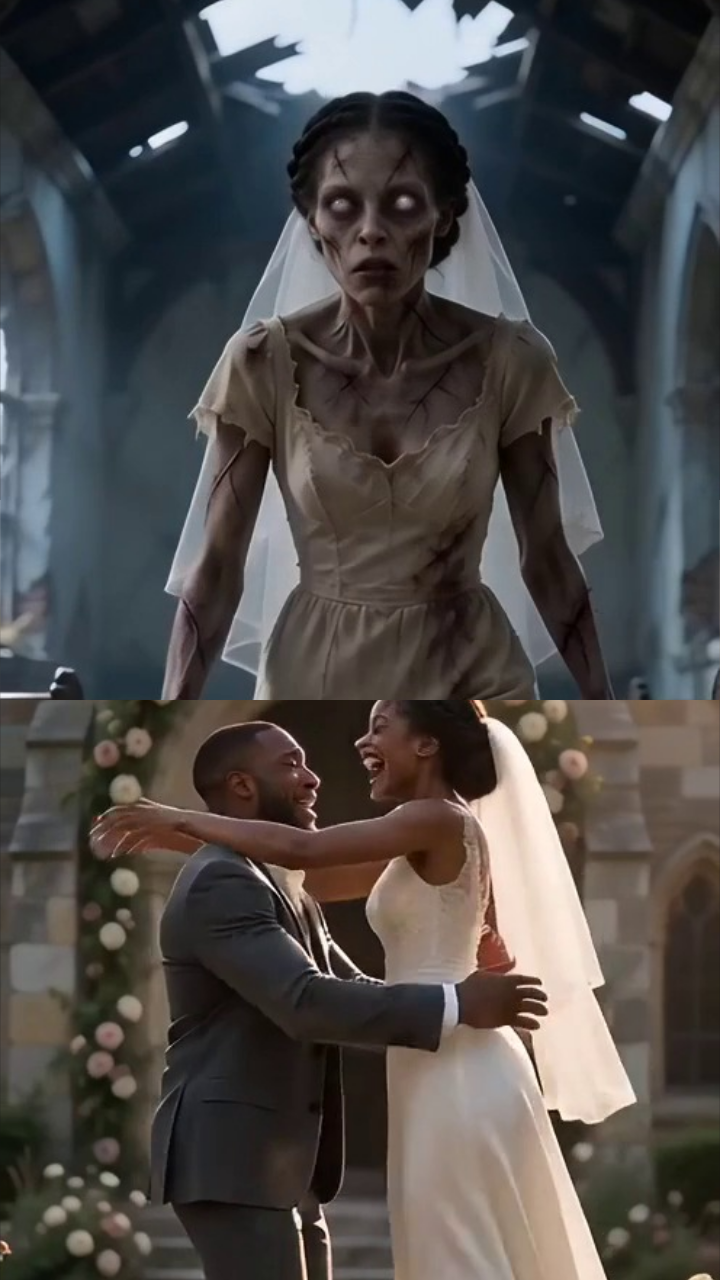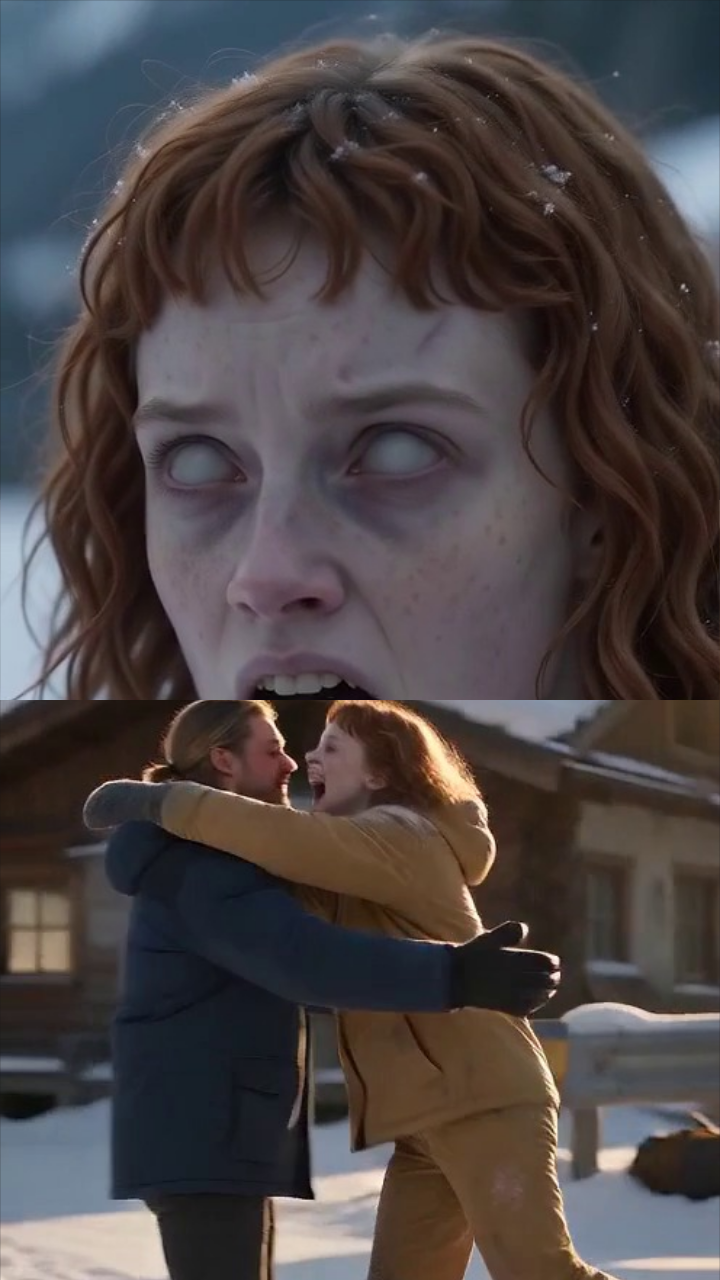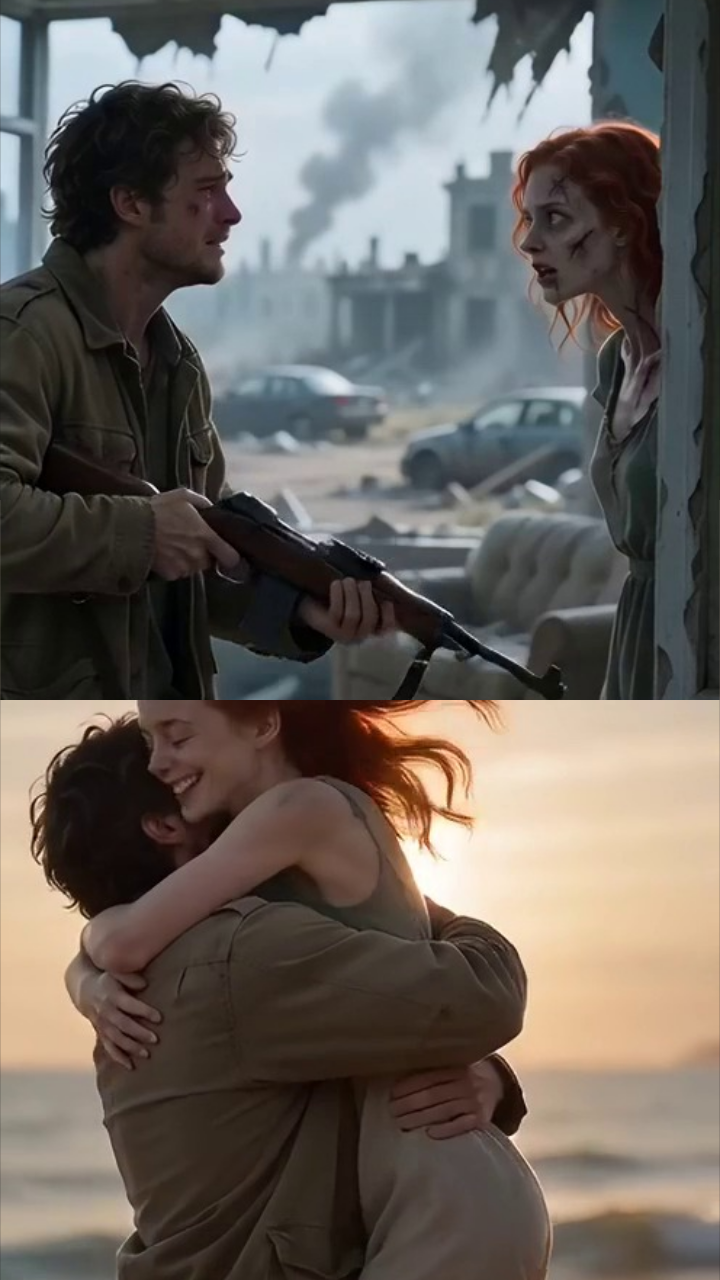
Zombie Couple Video Templates

Preview and personalize a 10-second story with two portraits, or compare all four templates below.

What to check in a template preview

Each story replaces two faces in an existing video. All current outputs are 10 seconds, 480p and vertical 9:16, with the original template music and sound effects.

The preview shows the story you are choosing, rather than a promise of identical facial detail in your personalized result. Watch the whole sequence and use the sound control to hear the soundtrack. Pick a scene because its pacing and mood fit your message, as well as its setting.

  • Face visibility: look for turns, embraces and moments when one person is partly hidden. Replacing a face does not make it visible through another person or an obstruction.
  • Role placement: Person 1 is the Survivor and Person 2 is the Zombie partner. Check your uploads against those labels before generating.
  • Fixed details: the template determines clothing, bodies, camera movement, locations and the sequence. A beach portrait does not turn the wedding story into a beach wedding.
  • Sound and length: the full 10-second sequence and original audio remain together. The current workflow does not offer a silent version or a different story length.

Prepare two portraits for your chosen story

Use one clear, front-facing portrait per adult, with even light and visible eyes, nose and mouth. Avoid group pictures, strong filters, very dark lighting and faces hidden by hair or accessories. JPEG, PNG and WebP files are supported, up to 10 MB each.

Both adults must agree to AI processing of their likenesses and the intended sharing, and you must hold the necessary photo rights. Do not upload minors, nudity, pornography, violent or gory images, or other prohibited material. The fictional zombie setting does not change those rules.

Once you select a story, add the two photos in the creator panel, confirm permission and review the displayed cost. Generate, watch the finished result and use its download action. The illustrated user guide shows these controls step by step.

Template questions

Does selecting a story start a paid generation?

No. Selecting and previewing a template lets you compare it before you generate. Review your photos, permission and the credit total on the generation button before submitting a task. Current packages are on the price page.

Can I change stories after adding my photos?

You can choose another story before generation. On a phone, use Back to stories to return to browsing. Photos stay in the current page while you compare; leaving or reloading the page can clear those local selections. Story switching is locked while a generation needs to finish or be resolved.

Can I customize a template with a prompt?

The current tool personalizes faces, without a text-prompt field. If you want to plan a different scene for an external tool, our copyable zombie couple video prompts offer separate creative starting points.

What if the generation fails?

Credits charged for a failed generation are returned. This is a credit return, distinct from a cash refund. If a submission is still being checked, allow it to resolve before trying again. Keep its generation ID if you need help.

Can I post or use the result in an advertisement?

Personal sharing requires both adults' consent. Review the video and disclose its AI-created nature where the context or platform requires it. Commercial use needs separate confirmation of template, soundtrack and likeness rights; purchasing credits does not automatically clear them. Read the Terms of Service and photo-processing policy before uploading.

Return to preview & create