This guide explains how to make a zombie couple video from two adult portraits using the story templates on our website. Follow the numbered screenshots to personalize a 10-second love story, check the credit cost and save the finished video.
Use the Zombie Couple Video generator at the top of this page to follow along. The screenshots show the desktop controls; the same photo requirements and credit checks apply on a phone. You can also compare the four story templates before choosing.
Before you start
- You and both people in the photographs must be 18 or older. Obtain permission to process each person's face and share the result, as well as the rights to use each photograph.
- Prepare two clear portraits, with one person in each image. Use JPEG, PNG or WebP files, up to 10 MB per photo.
- Have access to your account and enough credits for the cost shown in the generator. Sign in or verify your email if the site asks you to do so.
Choose well-lit, mostly front-facing portraits with visible eyes, nose and mouth. Avoid sunglasses, heavy filters, group shots and faces hidden behind hair or hands. Do not upload nudity, sexual material, violent or gory content, or children's photos. See our photo permissions and content rules before submitting.
1. Choose a story template
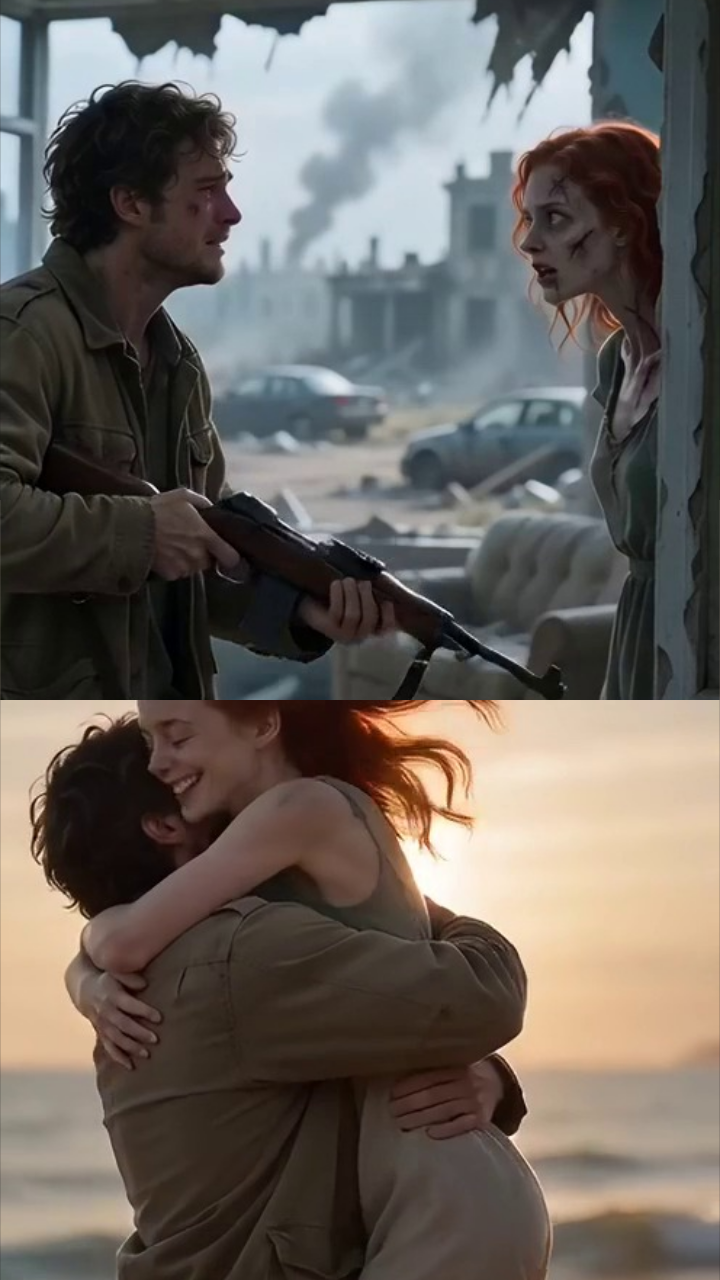
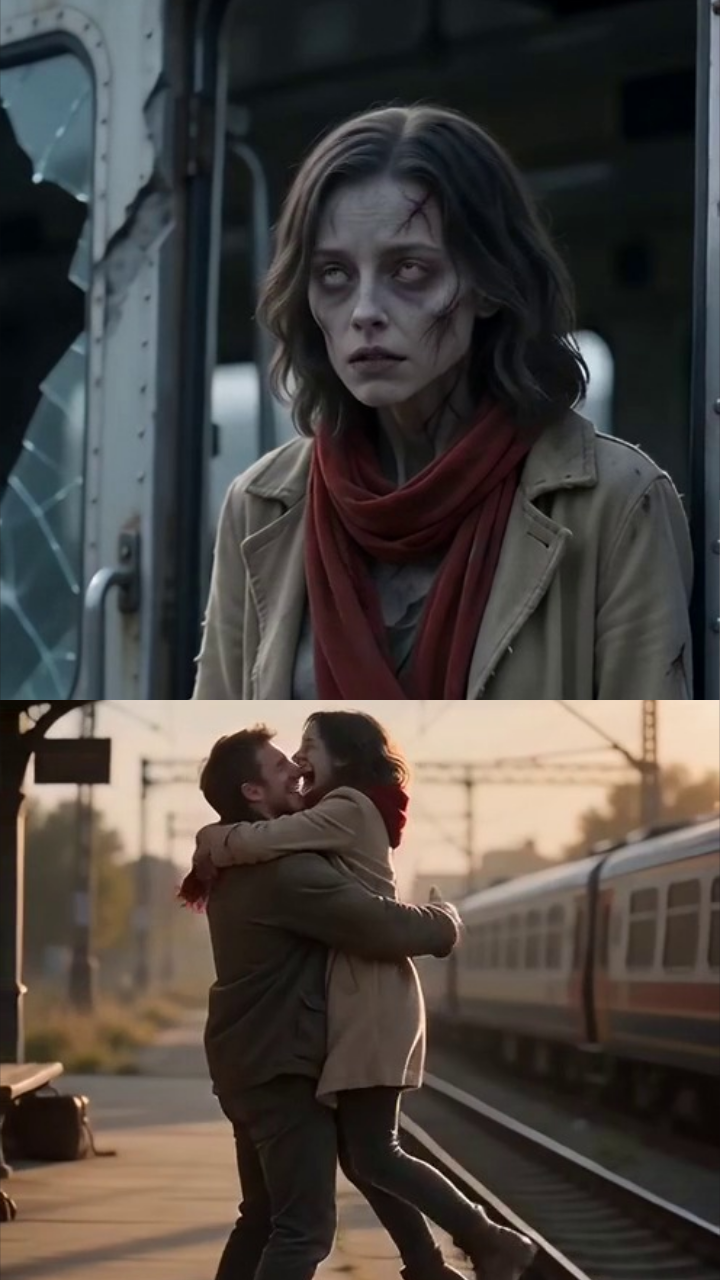
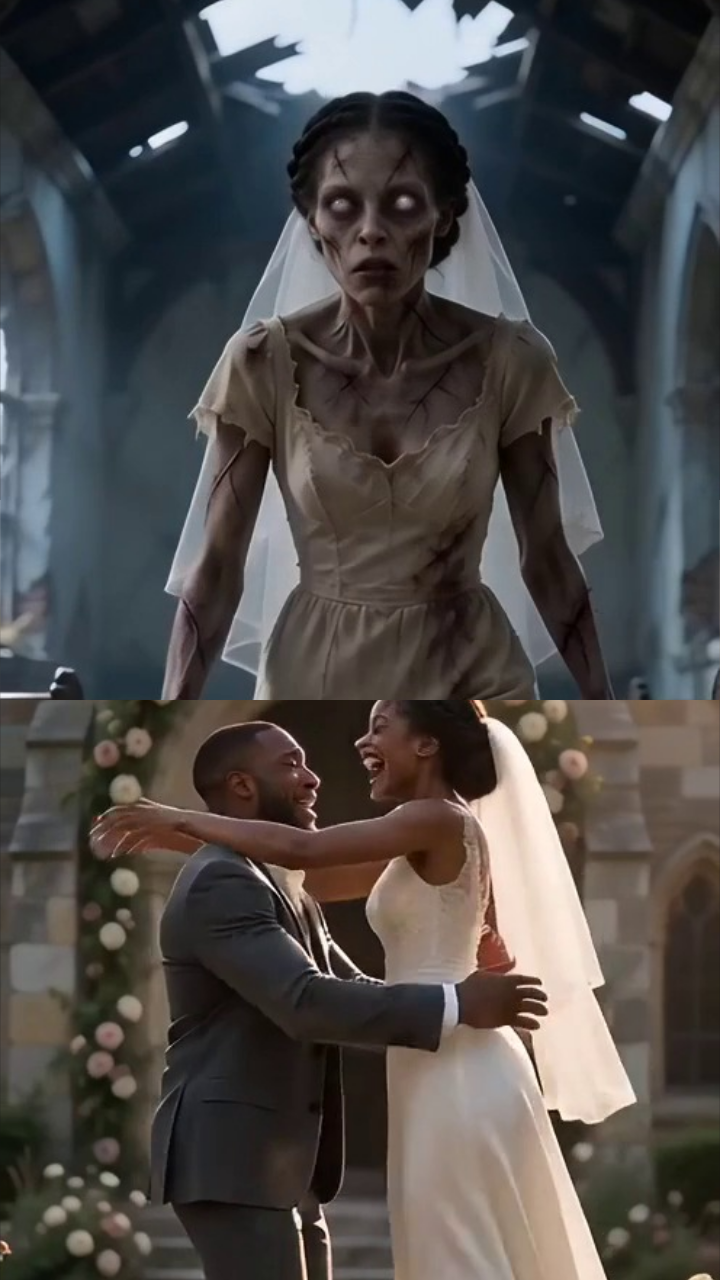
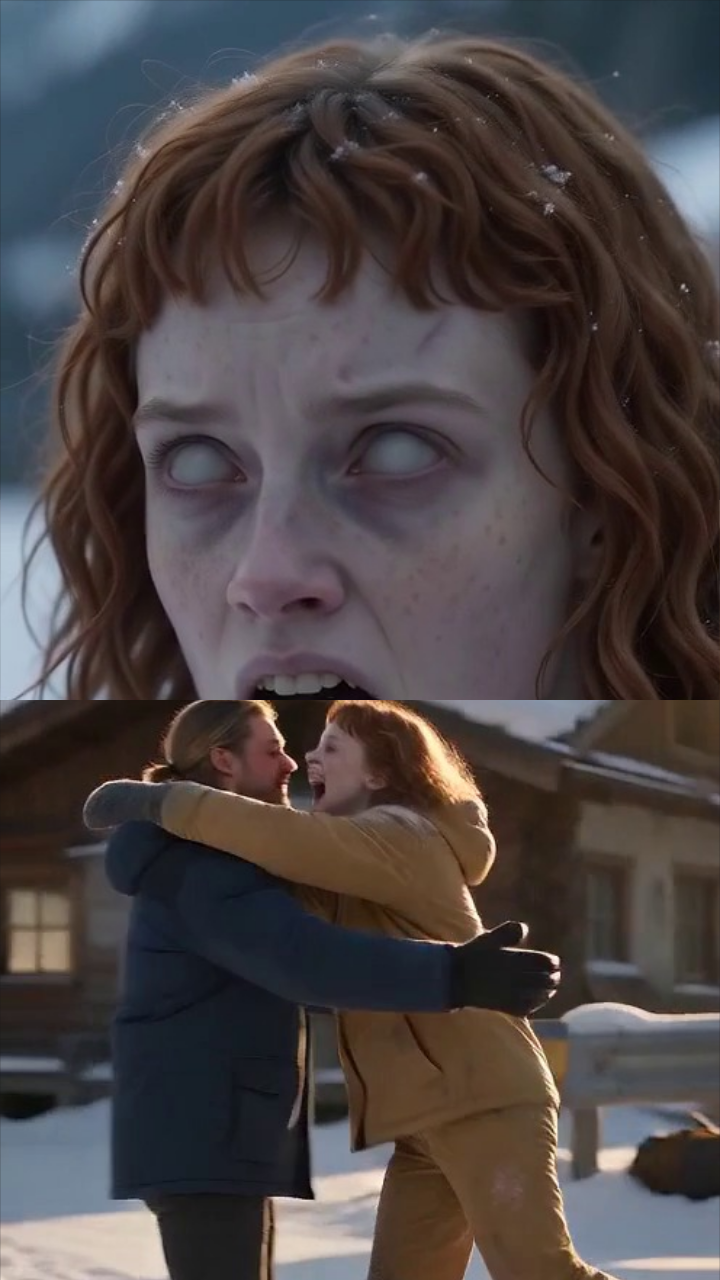
Browse Last Hug, The Last Train, Until the End and Our Winter using the arrows beside the preview. Watch the scene and use its sound control to hear the original soundtrack. Choose the story whose setting and mood fit the video you want to make.
On desktop, click the story preview to select it; the creator panel shows the selected story's name. On a phone, tap Use this template to move from browsing to the creation screen. Use the back arrow if you want to browse again.
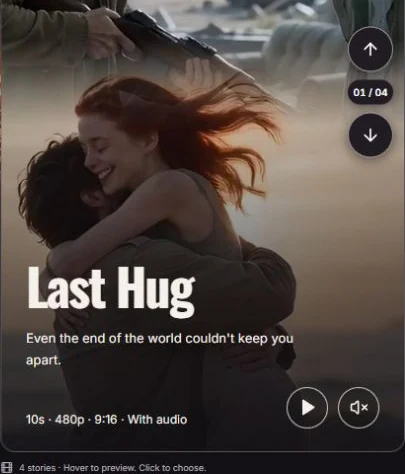
The template fixes the sequence, setting, clothing, bodies and soundtrack. Your photographs personalize the two faces. A turned head or an embrace in the preview can hide a face in the finished clip too, so check the scene before you commit to it.
2. Add one portrait for each role
In Make it your story, choose Add photo in each slot. Person 1 is the Survivor; Person 2 is the Zombie partner. Check that each portrait is in the intended role.
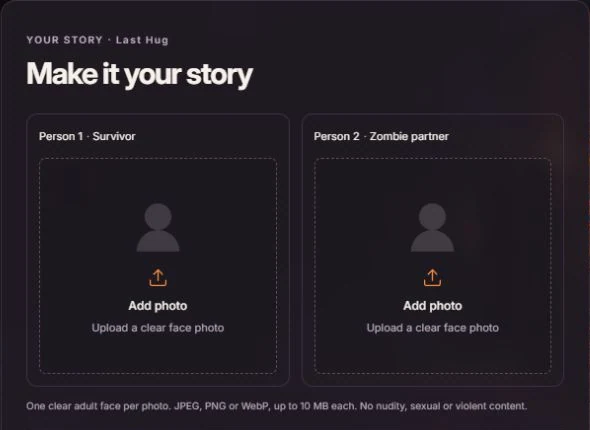
After choosing a file, its local preview appears in the slot. Select Change photo to replace it or use the remove button beneath it to clear it. If the faces are in the wrong roles, replace the photo in each slot. Selecting a photo alone does not submit it for processing.
3. Review settings, permissions and credits
Open Advanced options to confirm the output. The current couple stories keep the full template sequence, so some controls are fixed rather than selectable:
| Setting | Current output |
|---|---|
| Duration | 10 seconds |
| Resolution | 480p |
| Frame | Vertical 9:16 |
| Sound | Original template music and sound effects |
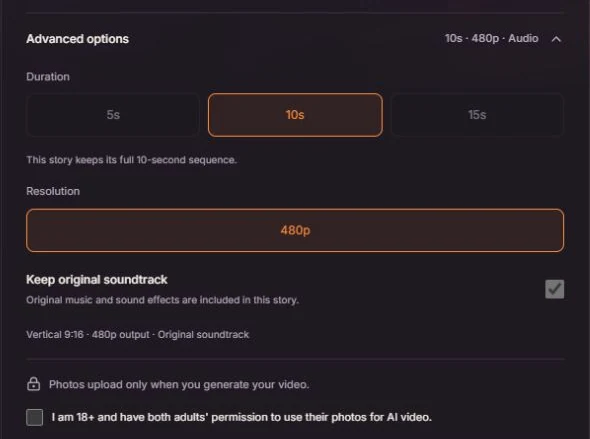
Read and confirm the checkbox only when you are 18 or older and both adults have agreed to the use of their photos for AI video. Next, read the credit total on Generate video. If your balance is too low, use Buy credits to review the available options. The pricing page lists current packages and subscriptions.
4. Generate, review and download
When both photos and permissions are ready, select Generate video. This submits the portraits for processing and starts the requested task. Keep the tab open while the status updates. If it says the request is being checked, let that existing request resolve instead of starting another paid task.

When your result is ready, watch it and use Download video beneath the preview to save a copy. Check the face placement and playback before posting it. View template example lets you compare it with the original; Create a new video starts another story with fresh photo selections.
Share the finished clip only where both adults have agreed. Make its AI-created nature clear where the context or platform requires it. Personal sharing is the default use; advertising, resale and client work need separate confirmation of template, music and likeness rights.
If something goes wrong
- A photo will not open: check the file format and size. Try exporting a readable JPEG, PNG or WebP rather than renaming an unsupported file extension.
- The faces look unclear: review the source portrait and the template's head movement. Use a sharper, unobstructed portrait for a future attempt; a side-facing or hidden face may remain partly obscured.
- You see a sign-in or verification request: complete the requested account step, then check the current balance and cost again.
- A generation fails: the credits charged for the failed task are returned. Read the displayed error before retrying. A credit return is different from a cash refund.
- The submission remains unresolved: keep the generation ID and contact support@zombie-couplevideo.com. Avoid submitting a duplicate request while the existing task is being checked.
Questions before you share
Can I change the scene or write my own prompt?
The current workflow personalizes existing templates. You can choose a different story and change the portraits, but the setting, sequence, outfits and original soundtrack stay with that story.
Does closing the page delete my uploaded photos?
Closing clears local photo previews, not server copies from a submitted task. Completion or failure triggers input-photo cleanup; errors can delay it. Finished videos and separate moderation evidence have different retention rules. Read the photo-processing and deletion policy for details.
Do I automatically own all rights to the finished clip?
You keep the rights you already hold in your photos, but the template and soundtrack have their own rights. Paying for generation does not automatically clear commercial use or guarantee exclusive copyright in an AI-assisted result. The Terms of Service explain the personal-sharing permission.